Tags and labels that carry your name.
A tag with the part details, a QR code and a message of your own, for a shelf or a shipment.
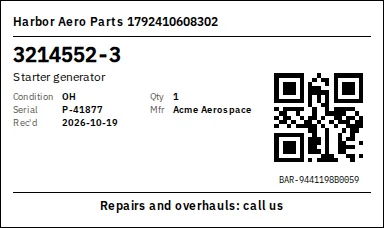
What you can print
- A part tag in two sizes: short (4 by 2 and 3/8 inches) or tall (4 by 6 inches)
- A line of your own, such as who to call for repairs and overhauls, and your logo
- Printable barcode and QR labels on every plan; scanning a barcode or QR code to find, move or log a part is on Pro and up
- Shelf and bin labels for your locations
How it works
Pick the parts
In Inventory, tick the parts and choose Print label.
Choose the tag size
Under Printing on, pick Part tag, short (4 by 2 and 3/8 inches) or Part tag, tall (4 by 6 inches).
Add your message
Type a line such as Repairs and overhauls: call us, or leave it empty. Tick or untick Print my logo.
Print at 100 percent
In the print window set the scale to 100 percent (Actual size) and pick your label size.
Step-by-step guides
Questions
- Can I put my logo on the tag?
- Yes. Tick Print my logo.
- Which plans print labels?
- Every plan. Scanning a barcode or QR code to find a part is on Pro and up.
Keep reading
Try it with your own parts.
14 days free. No credit card required.